
Navigating today’s demands requires a toolkit that not only keeps us on track but also helps streamline workflows and maintain focus. Here’s a deep dive into top productivity tools and how they can make a significant impact on your efficiency, based on research and personal insights.
1. Task Management: Trello
Trello, a highly visual project management tool, uses cards, lists, and boards to help you organize tasks. Research shows that visual task management can enhance memory and increase productivity. Each project becomes a “board,” allowing you to map tasks in stages, create to-do lists, and track progress. I find Trello particularly useful for complex projects as it breaks down each step, making the work feel less daunting.
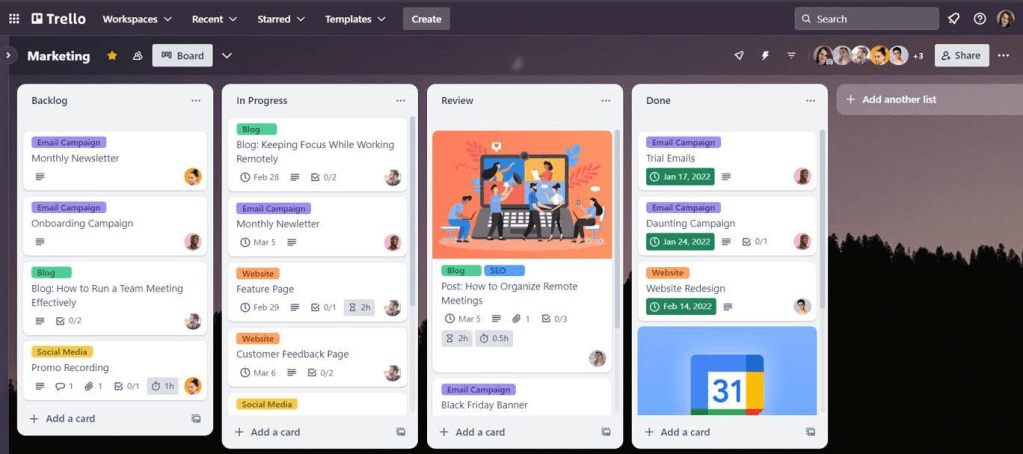
Image Suggestion: Screenshot of a Trello board with stages like “To-Do,” “In Progress,” and “Done.”
How to Use Trello:
- Create a Board: Set up a board for a project (e.g., “Website Launch”).
- Add Lists: Organize lists for each stage, like “To-Do,” “In Progress,” and “Done.”
- Use Cards: Each task becomes a card that you can move between lists, add due dates, labels, and team members to track progress.
2. Time Tracking: Toggl
Tracking time helps to identify inefficiencies, and Toggl’s data reports reveal exactly how time is spent on each task. Studies suggest time-tracking boosts productivity by creating awareness of time allocation. I initially felt time tracking was excessive, but Toggl showed me how much time small tasks consumed, allowing me to reorganize my day more effectively.
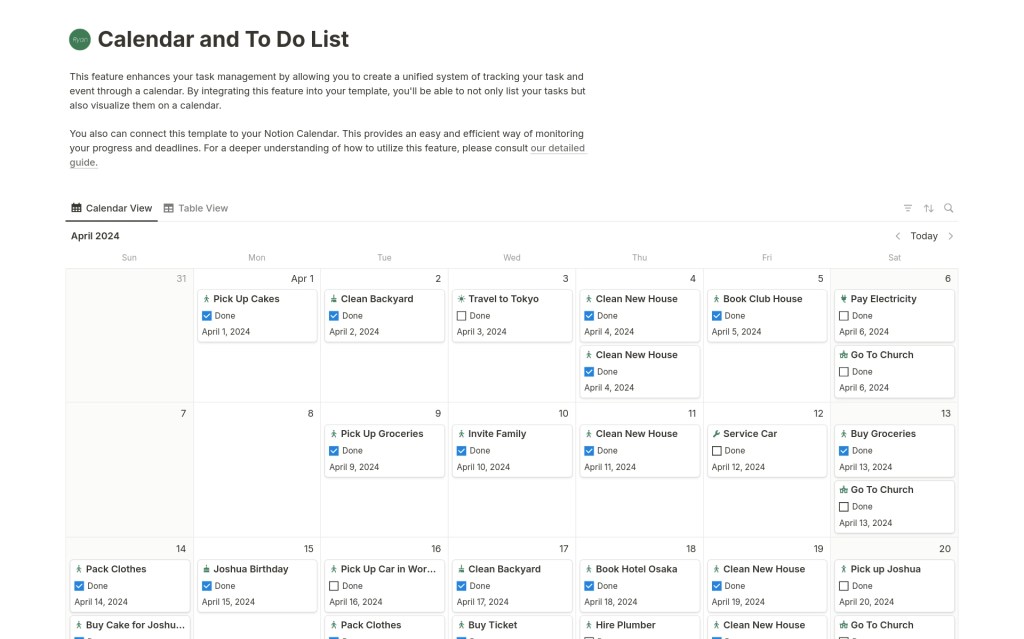
Image Suggestion: Toggl dashboard with time breakdowns of various tasks, illustrating productive time allocation.
How to Use Toggl:
- Set Up Projects: Create projects for different tasks or clients.
- Track Time: Start the timer when you begin a task, and stop it once finished.
- Analyze Reports: Toggl generates reports on your time usage, highlighting productivity trends.
3. Focus and Distraction Management: Forest
Forest combines gamification with productivity by encouraging users to grow virtual trees while they work distraction-free. Research supports gamified productivity apps, as they boost motivation and reduce phone addiction. I’ve found that knowing my tree will “wither” if I get distracted adds a playful sense of accountability, making it easier to resist the urge to check social media.
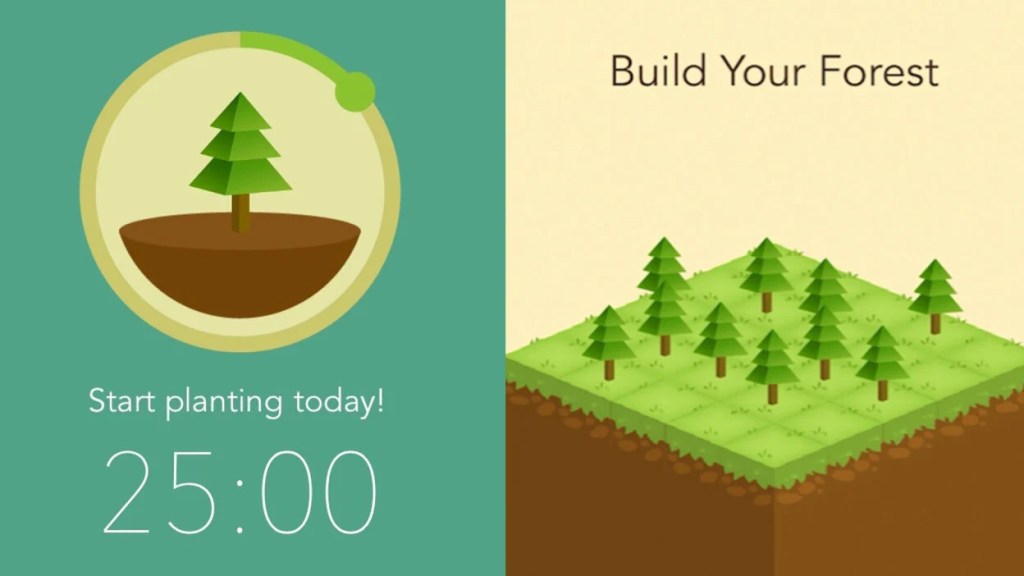
Image Suggestion: Screenshots of Forest’s progress screen, showing the virtual forest in growth.
How to Use Forest:
- Start a Session: Set the desired focus time, and a virtual tree begins to grow.
- Stay Off the Phone: If you leave the app, the tree dies, so it encourages staying on task.
- Monitor Progress: Over time, you grow a forest of focused sessions, showing your productivity visually.
4. Notes and Idea Organization: Evernote
Evernote is my go-to for brainstorming and organizing ideas. It acts as a digital notebook, allowing you to tag, search, and organize notes efficiently. Studies show that digital organization tools improve recall and simplify data retrieval, making it easier to track and reference important notes across projects. I particularly love using Evernote’s Web Clipper for saving articles and online research.

Image Suggestion: Evernote interface with categorized notes and tags, demonstrating an organized workspace.
How to Use Evernote:
- Create Notebooks: Organize notes into notebooks (e.g., “Blog Ideas,” “Research”).
- Tag Notes: Use tags for easy retrieval, like “Marketing” or “Writing.”
- Web Clipping: Use the Web Clipper extension to save articles, images, and ideas directly to Evernote.
5. Document Collaboration: Google Workspace
Google Workspace includes Docs, Sheets, and Drive, all of which make collaboration seamless. With real-time editing, team members can work together from any location, and all files are stored in Drive, making them easily accessible. Studies show that collaborative tools like these improve project efficiency and help teams work cohesively. I use Google Workspace for all team projects—it keeps everyone on the same page, literally and figuratively.
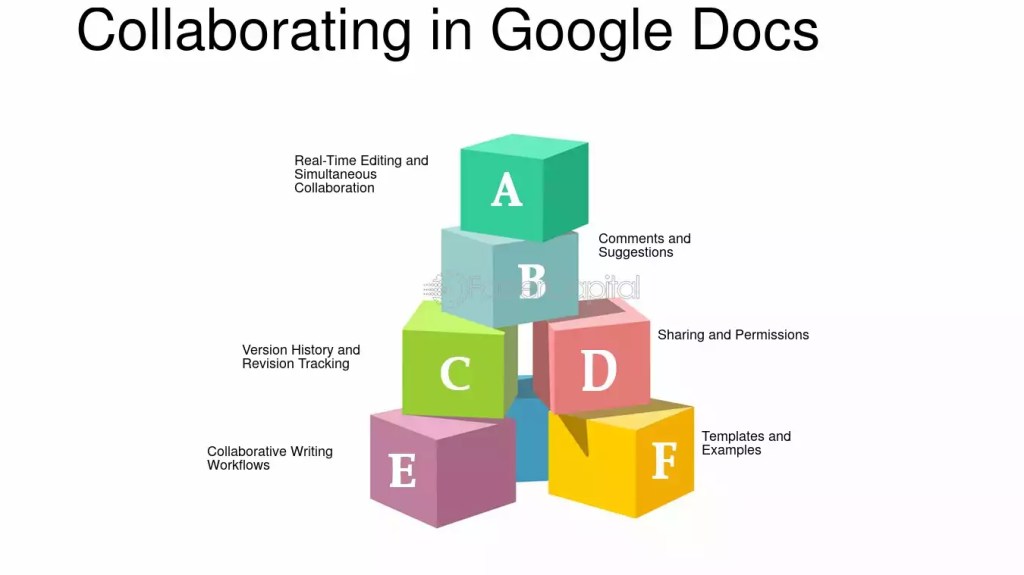
Image Suggestion: Google Docs with multiple contributors, illustrating real-time editing and teamwork.
How to Use Google Workspace:
- Create and Share Documents: Start a new Doc, Sheet, or Slide, then share it with team members.
- Edit in Real Time: Collaborators can edit simultaneously, with changes tracked live.
- Use Drive for Storage: Store and organize all project files in Drive, accessible anytime.
6. Project Planning: Notion
Notion’s flexibility allows it to serve as a personal productivity dashboard, project manager, and note-taker all in one. The app’s highly customizable structure is perfect for managing projects with various elements like task tracking, deadline calendars, and notes. For those managing multiple projects, Notion’s combination of to-do lists, calendar views, and collaborative features make it a productivity powerhouse.
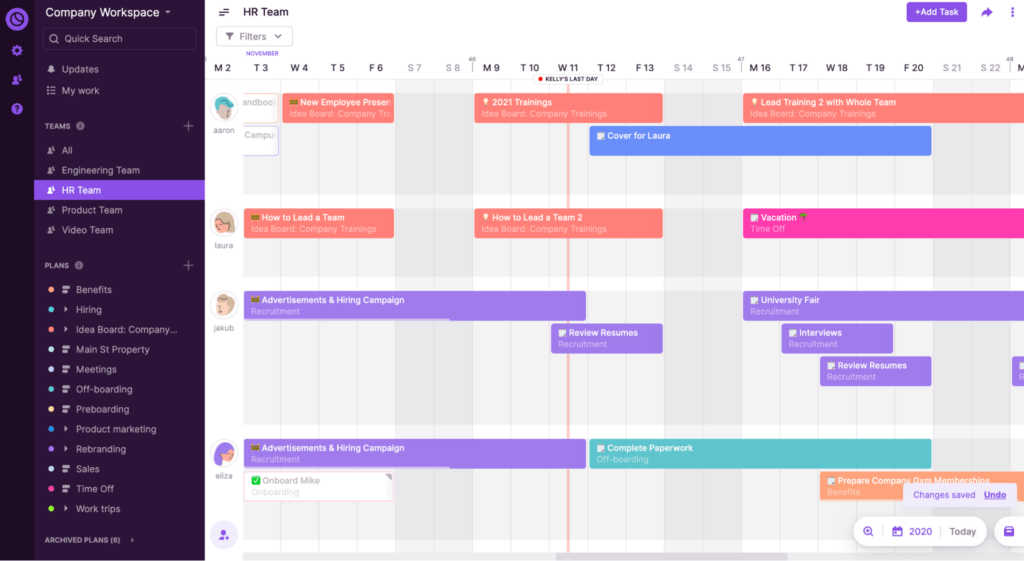
Image Suggestion: Notion workspace showing organized task lists, calendars, and notes to illustrate its versatility.
How to Use Notion:
- Set Up Templates: Use or create templates for to-do lists, calendars, and dashboards.
- Add Blocks: Insert text, images, and lists to create a dynamic workspace.
- Organize by Project: Create separate pages for each project with customized views for deadlines, notes, and progress tracking.
7. Distraction Blocker: Freedom
Freedom is a distraction-blocking tool that lets you block websites and apps across multiple devices, an especially helpful feature when you need to focus deeply. Research confirms that removing digital distractions can improve focus and work quality, so using Freedom has helped me work distraction-free during key tasks. By pre-scheduling focus times, Freedom reduces my chances of slipping into distracting habits.
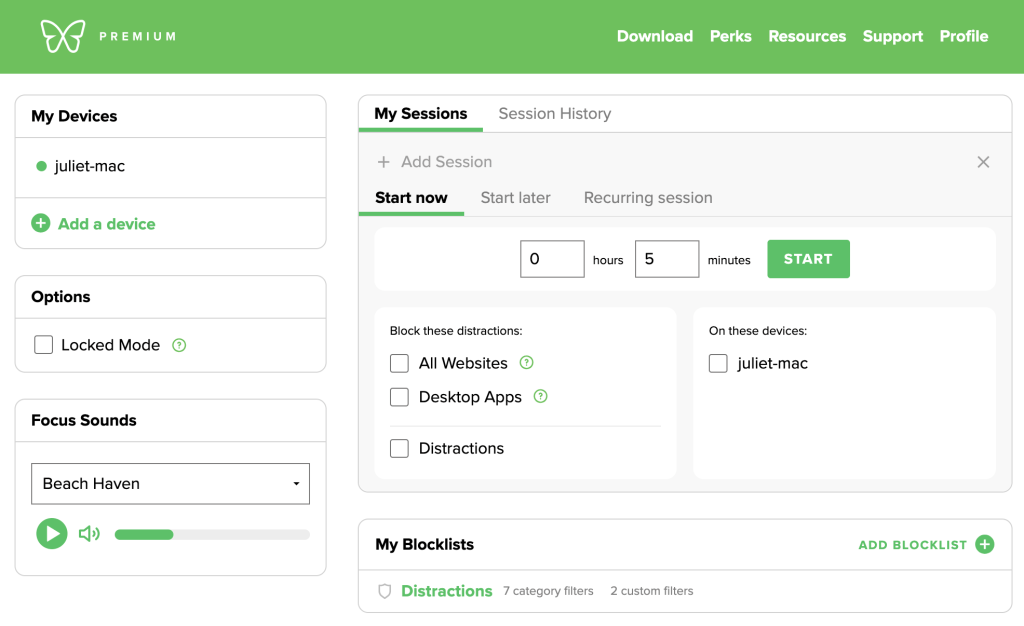
Image Suggestion: Freedom’s dashboard showing a list of blocked sites and a countdown timer, symbolizing time control and focus.
How to Use Freedom:
- Select Blocked Sites: Choose websites and apps you want to block during focus sessions.
- Set Focus Sessions: Schedule focus sessions, specifying start and end times.
- Review Your Sessions: Freedom logs your focus sessions, helping you track and improve your focus.
Whether you’re managing a packed schedule, struggling with distractions, or seeking more collaborative efficiency, these tools offer a wide range of productivity solutions. Experiment with one or two tools to see how they fit into your workflow. By gradually building your productivity toolkit, you’ll discover the right combination that enables you to work smarter, stay focused, and achieve your goals with ease.
Final Image Suggestion: An organized desk setup with a laptop and smartphone, symbolizing the intersection of technology and productivity.
Each of these tools brings unique value, and with the right combination, you can transform your workday into a more efficient and rewarding experience.
Flow with ease !!

Leave a comment